
📑 Table of Contents
- What Are Micro-Interactions and Why Do They Matter?
- The Anatomy of a Micro-Interaction: Structure, Trigger, Feedback, and Loops
- The Psychology of Feedback: Why Micro-Interactions Shape User Behavior
- Types of Micro-Interactions: From State Changes to System Feedback
- Trigger Design: How to Design Invisible Invitations
- Feedback Patterns: Visual, Haptic, Auditory, and Motion-Based Responses
- Design Principles for Crafting Effective Micro-Interactions
- Common Micro-Interaction Mistakes and How to Avoid Them
- Accessibility in Micro-Interactions: Designing for Every User
- Real-World Examples: Micro-Interactions Done Right
- Tools and Workflows for Designing Micro-Interactions
- The Future of Micro-Interactions: Where We're Headed
- References
- What Are Micro-Interactions and Why Do They Matter?
- The Anatomy of a Micro-Interaction: Structure, Trigger, Feedback, and Loops
- The Psychology of Feedback: Why Micro-Interactions Shape User Behavior
- Types of Micro-Interactions: From State Changes to System Feedback
- Trigger Design: How to Design Invisible Invitations
- Feedback Patterns: Visual, Haptic, Auditory, and Motion-Based Responses
- Design Principles for Crafting Effective Micro-Interactions
- Common Micro-Interaction Mistakes and How to Avoid Them
- Accessibility in Micro-Interactions: Designing for Every User
- Real-World Examples: Micro-Interactions Done Right
- Tools and Workflows for Designing Micro-Interactions
- The Future of Micro-Interactions: Where We're Headed
- References
What Are Micro-Interactions and Why Do They Matter?
The term "micro-interaction" was popularized by Dan Saffer in his 2013 book Microinteractions: Designing with Details, and it has since become a cornerstone of interaction design vocabulary. But the concept has been around much longer than that. Every time you pulled a physical light switch and heard that satisfying click, every time you turned a dial and felt the tactile resistance, every time a door handle gave you that subtle feedback that it was engaged:those are micro-interactions. They're just the digital versions now.
A micro-interaction, at its simplest definition, is a single, contained interaction that accomplishes one task. It has a trigger, a set of rules, feedback, and loops and modes. The trigger is what initiates the interaction (a user action (like tapping a button) or a system condition (like receiving a notification). The rules define what happens during the interaction. The feedback is what the user sees, hears, or feels. And the loops and modes determine the meta-rules) how long the interaction lasts and what happens when things go wrong.
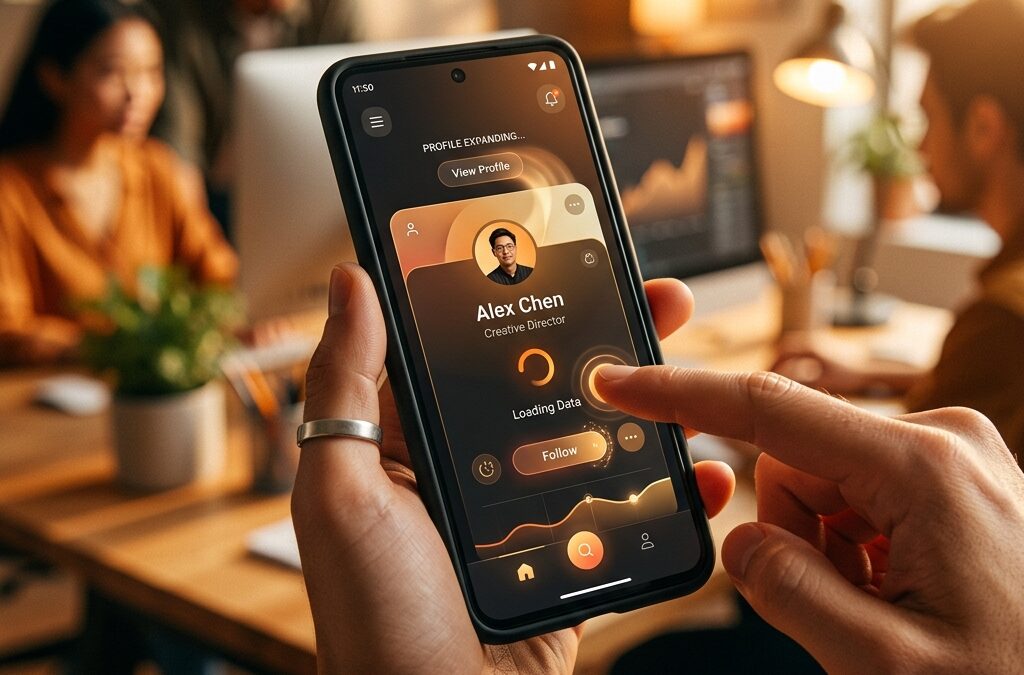
But that's the academic definition. What micro-interactions actually do is something more profound. They create a conversation between the user and the system. Every time you type a character and see it appear on screen, that's a micro-interaction confirming your action. Every time you like a post and see the icon animate, that's a micro-interaction telling you your action was registered. Every time you pull to refresh and see the spinner animate, that's a micro-interaction signaling that work is happening and you just need to wait a moment.
Why do they matter? Because attention spans aren't getting longer. Because users are making split-second decisions about whether to trust a digital product. Because the difference between a user continuing to use your product versus bouncing to a competitor often comes down to how the product feels in those first few seconds of interaction. And how it feels is determined, more than anything else, by the quality and thoughtfulness of its micro-interactions.
There's also a practical business angle. Well-crafted micro-interactions directly impact key product metrics. They reduce perceived latency (making slow operations feel faster). They increase task completion rates (by providing clear feedback that an action succeeded). They reduce user errors (by making system states obvious). And they contribute to what design researchers call "micro-moment satisfaction":that tiny burst of positive emotion a user feels when an interaction goes exactly as they expected. Over time, those micro-moments compound into brand loyalty, higher retention, and more word-of-mouth recommendations.
The Anatomy of a Micro-Interaction: Structure, Trigger, Feedback, and Loops
Let's get structural. Every micro-interaction has four components, and if you're designing one, you need to explicitly define each of them. I've found that the teams who produce the best micro-interactions are the ones who can articulate these four elements separately, rather than just "making it look nice."
The Trigger
The trigger is what starts the micro-interaction. There are two kinds: manual and system. A manual trigger is initiated by the user (they tap a button, they swipe a card, they click a link. A system trigger is initiated by an event or condition) a notification arrives, a download completes, an error occurs. In well-designed products, both types of triggers feel natural. Manual triggers invite, they don't command. System triggers arrive at the right moment, not interrupting the user's flow.
The Rules
The rules define what happens during the micro-interaction. They determine the behavior. If the user taps a like button, the rules say: the icon changes color, the count increments by one, and a subtle animation plays. The rules also define edge cases:what happens if the user taps it again (it toggles back), what happens if they're offline (it queues), what happens if they tap too fast (it debounces). This is where most micro-interactions fall apart, because designers only define the happy path.
The Feedback
Feedback is what the user perceives. It's the visible, audible, or haptic response that tells them their action was registered. Feedback can be visual (color changes, animations, transitions), auditory (clicks, tones, chimes), haptic (vibrations, taps, pulses), or any combination of these. The key insight here is that feedback should feel proportional to the action. Deleting an entire conversation should feel different than liking a single message. The weight of the feedback should match the weight of the consequence.
Loops and Modes
Loops and modes handle the meta-rules. Loops determine how long the micro-interaction lasts (how long the animation plays, how long the feedback persists. Modes determine what happens in different states) what the button looks like in its default state versus its loading state versus its error state. This is the most overlooked component. I've lost count of how many products I've seen where the success state works perfectly but the error state shows nothing, leaving users wondering if their action actually went through.
The Psychology of Feedback: Why Micro-Interactions Shape User Behavior
Micro-interactions work because they tap into fundamental psychological principles. They're not just visual polish: they're behavioral design tools that shape how users perceive, trust, and engage with a digital product. Understanding why they work is just as important as understanding how to build them.
Fitts's Law and the Cost of Interaction
Fitts's Law, originally formulated by psychologist Paul Fitts in 1954, states that the time to acquire a target is a function of the distance to it and the size of it. This has profound implications for micro-interactions. Small targets that are far away take longer to acquire. But micro-interactions can compensate for this by providing clear, immediate feedback that the target was hit. If a user taps a small button and sees an immediate visual response, their brain registers success faster than if they had to wait for a delayed response. The feedback effectively "completes" the interaction, closing the loop between intention and outcome.
The Feedback Loop and Dopamine
Every micro-interaction creates a tiny feedback loop. User acts → system responds → user registers response. This loop is fundamental to how our brains process interaction. When the loop is tight (when the response happens within 100-200 milliseconds:the brain registers the interaction as successful and releases a small amount of dopamine. When the loop is loose:when the response takes longer than 500 milliseconds) the user's brain enters a state of uncertainty, and the loop breaks.
This is why the "like" animation on social media platforms matters so much more than people give it credit for. The heart that fills in, the burst of color, the subtle bounce:these visual flourishes aren't just decorative. They're completing the feedback loop. They're telling the user's brain, in the clearest possible terms, that the action was registered and processed. Without that micro-interaction, the user is left in a state of uncertainty: "Did my tap actually register? Should I tap again?"
Hick's Law and Decision Fatigue
Hick's Law states that the time it takes to make a decision increases with the number and complexity of choices. Micro-interactions can help reduce this cognitive load by providing clear, immediate feedback that guides the user through their decision-making. A well-designed dropdown that shows a subtle animation as options appear, a toggle that changes state with a clear visual indicator, a checkbox that fills in with a satisfying transition:these micro-interactions reduce the cognitive friction of making choices. They turn what could be a confusing, ambiguous interaction into something clear and decisive.
The Von Restorff Effect (Isolation Effect)
The Von Restorff effect, also known as the isolation effect, predicts that an item that stands out from its peers is more likely to be remembered. Micro-interactions exploit this by making important state changes visually distinct. When a button changes from its default state to a "hovered" state with a subtle elevation change, or when a card shifts from "inactive" to "active" with a color transition, these micro-interactions make the state change memorable. Users don't just register what happened. They register that something happened, which is the first step toward building a reliable mental model of the interface.
Nielsen's Usability Heuristics and Micro-Interactions
Jakob Nielsen's 10 usability heuristics for user interface design directly map to micro-interaction principles. Several of the heuristics are nearly impossible to satisfy without well-designed micro-interactions:
- Visibility of system status (Heuristic #1): The system should always keep users informed about what's going on. This is the core function of micro-interactions:providing feedback that communicates state.
- Match between system and the real world (Heuristic #2): Micro-interactions should mimic real-world physics. Buttons should feel like they have depth. Toggles should feel like physical switches. The animation should follow natural acceleration and deceleration curves.
- Error prevention (Heuristic #5): Even better than good error messages is preventing errors from happening in the first place. Micro-interactions that require a deliberate action (like a long-press for destructive operations) prevent accidental errors.
- Recognition rather than recall (Heuristic #6): Micro-interactions reduce cognitive load by providing contextual cues. A button that changes appearance when it's been pressed tells the user "you've already done this" without requiring them to remember.
Types of Micro-Interactions: From State Changes to System Feedback
Micro-interactions come in several distinct flavors. Categorizing them helps designers think systematically about what kind of feedback each interaction point in the product needs. Here are the main categories I've found useful in practice.
State Change Micro-Interactions
These communicate a change in the system's state. A toggle switching from "off" to "on." A checkbox transitioning from unchecked to checked. A button changing from "default" to "pressed." These are the most common micro-interactions and the ones users notice most when they're missing. A toggle that doesn't change appearance is not a toggle: it's a confusing button that leaves users wondering what state it's in.
State change micro-interactions should communicate three things: the previous state, the new state, and the transition between them. The transition is critical. An abrupt state change is jarring. A smooth, 200-millisecond transition that shows the state morphing from one to the other gives the user's brain time to register that a change has occurred. Without that transition, the user may not even notice the state change and will tap again, potentially toggling back to the original state.
Confirmation Micro-Interactions
These confirm that a user's action was received and processed. The "like" animation, the "follow" button that changes from "Follow" to "Following," the "sent" checkmark on a message. These interactions serve a dual purpose: they provide closure (the action is done) and they provide validation (the action was valid). Without confirmation micro-interactions, users experience what I call "interaction anxiety":the nagging feeling that maybe they didn't actually perform the action they intended to.
Error and Warning Micro-Interactions
These communicate that something went wrong or that the user should proceed with caution. A red shake animation on an incorrect password field. A subtle pulse on a required field that wasn't filled in. A warning icon that transitions from invisible to visible with a gentle fade. These micro-interactions are critical for trust. If the only time a user sees a micro-interaction is when things go wrong, and that micro-interaction is well-designed, they'll trust the product more because they know it will communicate problems clearly.
Progress Micro-Interactions
These communicate that work is happening and how long it will take. The loading spinner, the progress bar, the skeleton screen, the "uploading" animation with the percentage indicator. Progress micro-interactions are unique because they need to communicate duration without making the user feel like the wait is longer than it actually is. Good progress micro-interactions use what UX researchers call "perceived performance":they make the wait feel shorter than it actually is by providing engaging, continuous feedback.
Notification Micro-Interactions
These announce that something has happened that the user should know about. A badge appearing on an icon. A toast notification sliding in from the top of the screen. A subtle dot appearing next to a name to indicate they've posted something new. Notification micro-interactions walk a fine line between communicating information and interrupting the user's flow. Good ones are noticeable but not disruptive:they appear in the user's peripheral vision rather than demanding their full attention.
Trigger Design: How to Design Invisible Invitations
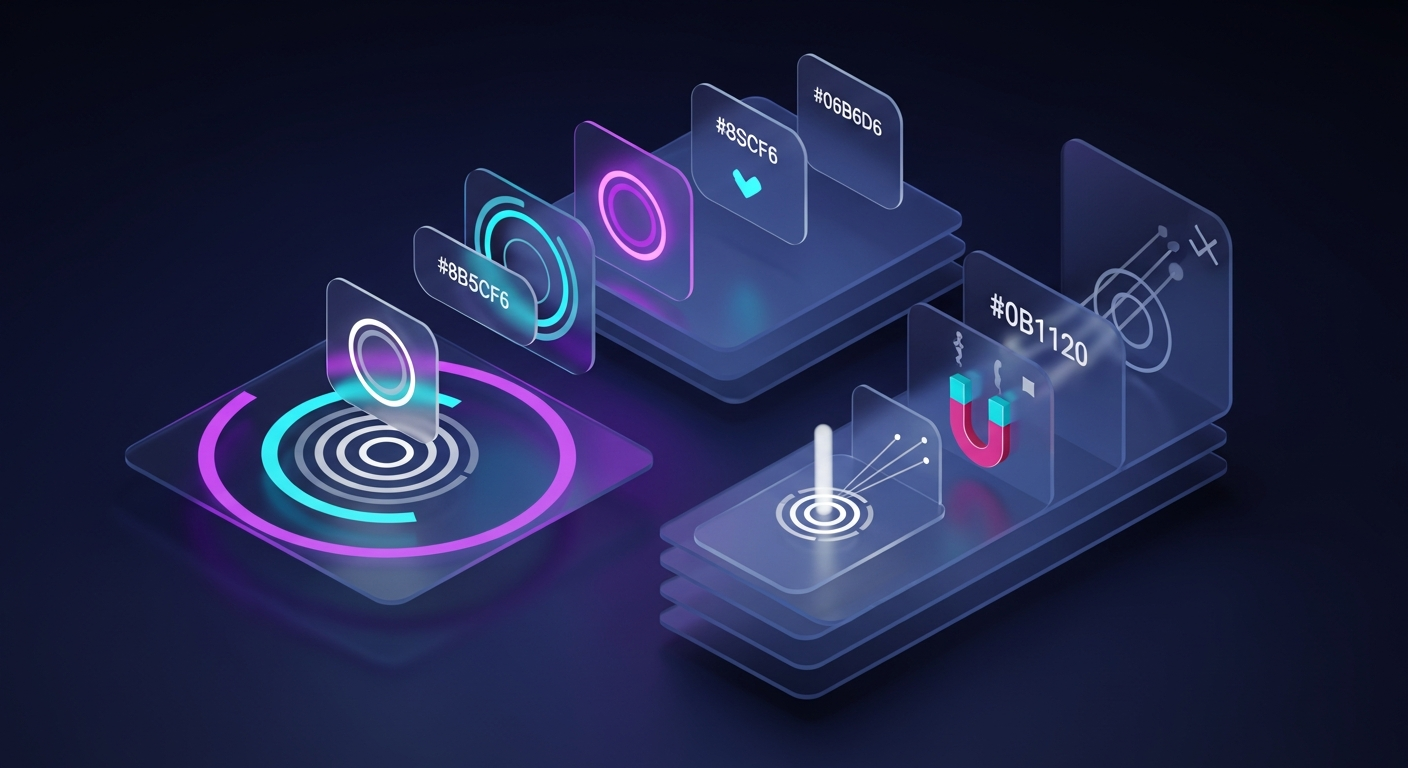
The trigger is the first moment of any micro-interaction, and it's the most critical to get right. A bad trigger results in a micro-interaction that either fires when it shouldn't (false trigger) or doesn't fire when it should (missed trigger). Designing good triggers requires understanding both the physical and cognitive aspects of how users initiate actions.
Physical Trigger Design
Physical triggers are about the interaction mechanics. Where is the button? How big is it? What shape is it? Is it in a position that's easy to reach? The trigger needs to be physically discoverable before it's clickable. This is why "hover" states on desktop and "touch" targets on mobile need to be designed with explicit consideration of the physical interaction.
For mobile, Apple's Human Interface Guidelines recommend a minimum touch target of 44x44 points. Google's Material Design suggests at least 48x48dp. These aren't arbitrary numbers:they're based on the average size of a fingertip (about 8-10mm wide) and the average accuracy of a tap (which has about 2-3mm of variance). If your trigger is smaller than these dimensions, you're increasing the likelihood of false triggers or missed triggers, both of which erode the effectiveness of the micro-interaction.
Cognitive Trigger Design
Cognitive triggers are about expectation. The user needs to know that an element is interactive before they try to interact with it. This is where affordance design comes in. A button should look like a button. A link should look like a link. A slider should look like a slider.
The problem is that modern design trends (especially flat design and minimalism:have a tendency to strip away these visual affordances. A flat rectangle with no shadow, no border, and no visual depth doesn't look like a button) it looks like a piece of text or a decoration. This creates what Don Norman calls "false affordances": the user sees an element and doesn't know whether it's interactive, so they have to guess or tap cautiously.
Micro-interactions can help here. A button that subtly elevates on hover (on desktop) or briefly pulses when the user's finger approaches (on mobile) provides a "pre-trigger" cue that tells the user "this thing is interactive, and you can interact with it." This is the micro-interaction equivalent of a door handle that looks like you're supposed to pull it.
Feedback Patterns: Visual, Haptic, Auditory, and Motion-Based Responses
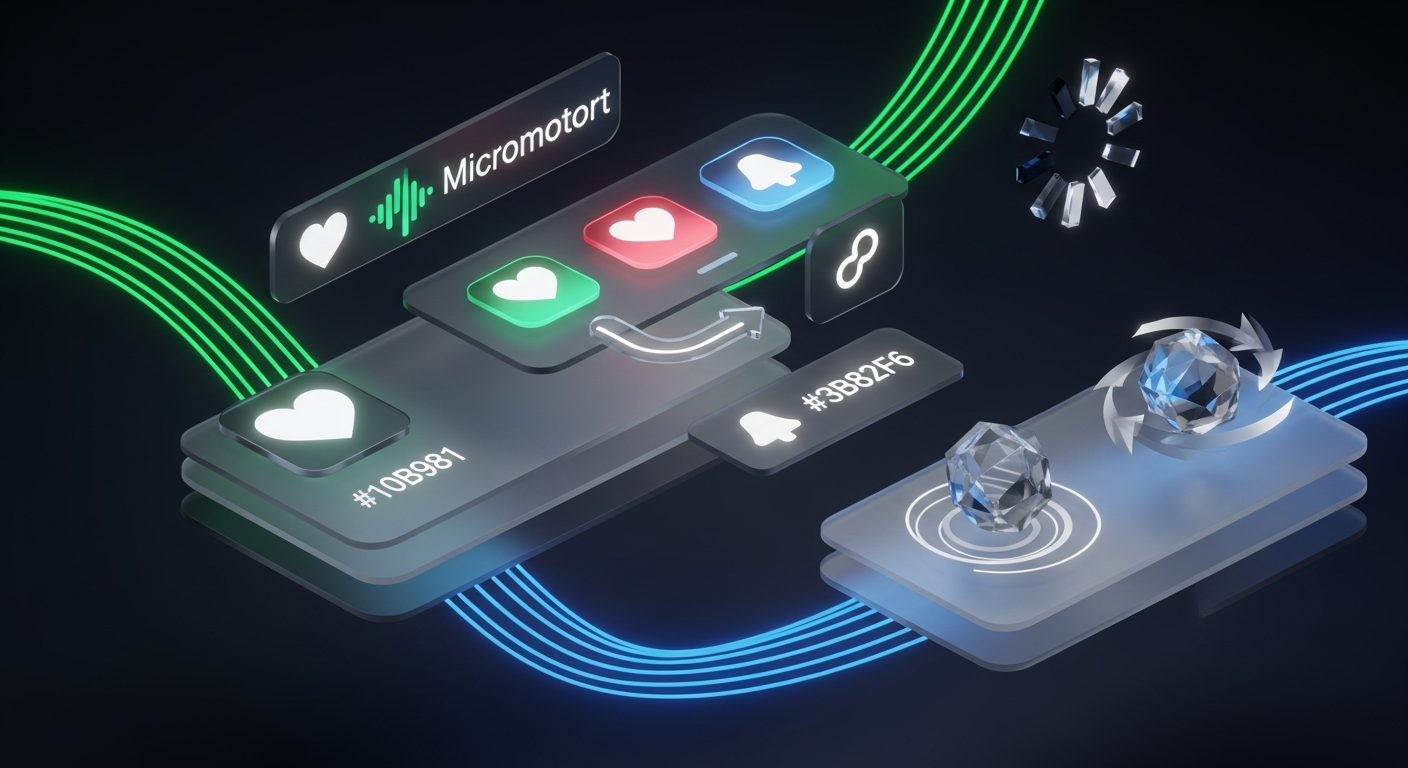
Feedback is the core of the micro-interaction: it's what the user actually perceives. The best micro-interactions use multiple sensory channels to provide redundant, reinforcing feedback. Here's a breakdown of the four main feedback modalities and when to use each one.
Visual Feedback
Visual feedback is the most common and the most versatile. It includes color changes, shape changes, size changes, position changes, opacity changes, and any combination of these. Visual feedback is processed by the brain's visual cortex, which is the fastest sensory processing system:the brain can register visual changes in as little as 13 milliseconds.
Key visual feedback techniques include:
- Color transitions: A button that changes from blue to green when "success" is achieved. The transition should be smooth, not abrupt, and should use a color that has an intuitive association with the state (green = success, red = error, yellow = caution).
- Morphing animations: An icon that transforms from one shape to another. A heart that fills in, a bookmark that changes from outline to filled, a "play" button that becomes a "pause" button. These are effective because they communicate state change through shape change, which is more informative than simple color change.
- Scale and position shifts: A card that expands when selected, a dropdown that animates open, a menu that slides in from the side. These communicate depth and spatial relationships:they tell the user where they are in the information hierarchy.
- Opacity and blur changes: A modal that overlays with a dimmed background, a confirmation dialog that blurs the content behind it. These communicate mode changes:they tell the user that they've entered a different interaction context.
Haptic Feedback
Haptic feedback (vibrations, taps, and physical sensations) is the most underutilized feedback modality in digital design. It's also one of the most powerful, because it activates the somatosensory cortex, which processes touch, and it's processed in parallel with visual and auditory feedback, not in sequence.
The iPhone's Taptic Engine and later haptic systems on Android devices can produce a remarkable range of tactile sensations. A light tap for a button press. A firm thud for a confirmation. A series of rapid taps for an error. A gentle buzz for a notification. These aren't just buzzes:they're tactile micro-interactions that communicate specific meanings through the sense of touch.
Haptic feedback is particularly valuable in contexts where the user can't see the screen:when their phone is in their pocket, when they're looking at something else, or when they have visual impairments. A well-designed haptic micro-interaction can communicate "the action was successful" or "the action failed" without the user ever looking at the screen.
Auditory Feedback
Auditory feedback (sounds, tones, and voice responses) is the most contentious feedback modality. People have strong opinions about sound in digital products. The right sound can make a micro-interaction feel satisfying. The wrong sound can make it feel obtrusive or annoying.
Good auditory micro-interactions follow a few key principles. First, the sound should be short. Under 200 milliseconds. Longer sounds feel like they're demanding attention. Second, the sound should be contextually appropriate. A confirmation sound should be different from an error sound, and both should be different from a notification sound. Third, the sound should be opt-out friendly. The micro-interaction should work perfectly without the sound, and the sound should be a bonus, not a requirement.
Apple's original "click" sound when you pressed the home button, the "swoosh" when you sent an email, and the "tick" when you toggled a switch are all classic examples of auditory micro-interactions that became so associated with the action that users would feel the interaction was incomplete without the sound.
Motion-Based Feedback
Motion-based feedback (animations, transitions, and kinetic responses) is the visual language of micro-interactions. Good motion design follows the principles of natural physics: acceleration and deceleration (easing curves), mass and weight, friction and resistance.
The most important motion principle for micro-interactions is easing. Objects in the real world don't move at constant speeds:they accelerate when they start moving and decelerate when they stop. This is called an "ease-in-out" curve. Micro-interactions that use linear animation (constant speed) look robotic and unnatural. Micro-interactions that use proper easing curves look organic and responsive.
Key motion patterns include:
- Fade-in/fade-out: Elements that appear by fading in and disappear by fading out. This is the gentlest form of motion and works for subtle state changes.
- Slide: Elements that enter by sliding from a direction and exit by sliding back. This implies a spatial relationship:the element came from somewhere and returns to that somewhere.
- Scale: Elements that grow or shrink. This implies importance:a growing element is becoming more important, a shrinking element is becoming less important.
- Spring and bounce: Elements that overshoot their target slightly and then settle back. This implies satisfaction:the element is so eager to be in its final state that it overshoots slightly.
Design Principles for Crafting Effective Micro-Interactions
After years of studying and designing micro-interactions, I've settled on a set of principles that I use as a checklist every time I design one. These aren't rules:they're heuristics that help me evaluate whether a micro-interaction is doing its job or just adding visual noise.
1. The Micro-Interaction Should Be Invisible When It Works
The best micro-interactions are the ones users don't consciously notice. They register them at a subconscious level:they feel like the interaction was smooth, natural, and expected. If a user has to think about the micro-interaction, it's too prominent. The micro-interaction should communicate the state change, not itself.
2. Duration Should Match Consequence
A light tap on a button that doesn't do anything important should get a short, subtle response (50-100ms). A heavy action like deleting content or confirming a payment should get a longer, more deliberate response (300-500ms). The duration of the micro-interaction should communicate the weight of the consequence. I see this violated constantly in products where every single interaction gets the same "celebratory" animation, which dilutes the meaning of the animation and leaves users unable to distinguish between trivial and significant actions.
3. Feedback Should Be Redundant
Use multiple sensory channels when possible. Visual + haptic. Visual + auditory. Haptic + visual. Redundant feedback ensures that the micro-interaction is perceived even if one sensory channel is blocked. The user might not see the animation if they're looking away from the screen, but they'll feel the haptic. They might not hear the sound if they're in a noisy environment, but they'll see the visual.
4. The Micro-Interaction Should Consider Edge Cases
What happens when the user taps twice? What happens when the network is slow? What happens when the user's finger slips? What happens when the action is performed in the wrong state? Good micro-interactions have defined behaviors for every edge case. Bad micro-interactions only work on the happy path and leave users confused when anything deviates from the expected.
5. Micro-Interactions Should Be Consistent Within the Product
If a "like" action uses a heart icon that fills in with a bounce animation, then a "save" action should use a similar pattern. If a "delete" action uses a shake and a red transition, then a "block" action should use a similar pattern. Consistency within the product builds a mental model. The user learns the interaction language of the product and can predict how new interactions will behave before they try them.
6. The Micro-Interaction Should Have a Clear Start and End
A micro-interaction that loops indefinitely without reaching a clear endpoint creates anxiety. The user doesn't know whether the action is still processing or whether it's stuck. This is why infinite spinners are so destructive to user experience:they communicate "something is happening" but they also communicate "and we don't know when it will end."
Common Micro-Interaction Mistakes and How to Avoid Them
I've made most of these mistakes myself. Here's what I've learned from fixing them.
Over-Animating
The most common mistake is making every micro-interaction a spectacle. A button that does a 3D flip, a color that cycles through a rainbow, a loading spinner that does a full dance routine. These aren't micro-interactions:they're micro-distractions. The micro-interaction should serve the interaction, not dominate it. If the user's attention is on the animation rather than on the state change, the micro-interaction has failed.
Fix: Use the 50-150-300 rule. 50ms for the initial response (the user needs to know their action was received). 150ms for the transition. 300ms for the full feedback. If your micro-interaction takes longer than 300ms to complete, it's too long.
The Disappearing Micro-Interaction
Some micro-interactions are so subtle that users don't even notice they happened. A toggle that changes from "off" to "on" with a barely perceptible color shift. A button that changes from "default" to "pressed" with no visual change. These aren't micro-interactions:they're micro-failures. The user sees no feedback and has to infer whether their action worked.
Fix: Use the 20% contrast rule. The visual change in the micro-interaction should be at least 20% different from the previous state in terms of color, brightness, or position. If the change is less than 20%, the user's brain won't register it as a change.
Ignoring the Error State
The most common oversight in micro-interaction design is the error state. A button that shows a beautiful "success" animation but nothing happens when it fails. A form that shows a lovely "submitted" state but no "error" state. Users learn to distrust micro-interactions that only work when they succeed. A good micro-interaction communicates failure just as clearly as success.
Fix: Design the error state first. Then design the success state. If you can't design a clear error state, don't design a success state either.
False Feedback
The worst micro-interaction sin is providing feedback that doesn't correspond to what actually happened. A "success" animation when the database write failed. A "sent" checkmark when the message wasn't actually delivered. A "saved" indicator when the data was lost. This erodes trust faster than anything else.
Fix: Only show the micro-interaction's completion state when the action has actually completed at the system level. If you need to show an optimistic state before the action completes, use a different visual language for the optimistic state.
Latency Blindness
If the micro-interaction's response takes longer than 100 milliseconds, the user's brain starts to register the delay. If it takes longer than 300 milliseconds, the user starts to wonder if the interaction failed. If it takes longer than 1 second, the user may attempt the action again, causing a cascade of unintended consequences.
Fix: Use the "instant response" pattern. Show the micro-interaction's feedback immediately, even if the actual system response will take longer. The user needs to see something within 100ms to know their action was received. Then use a secondary micro-interaction (like a loading state) to communicate that the system is still processing.
Accessibility in Micro-Interactions: Designing for Every User
Micro-interactions have a significant accessibility problem. Many of them (especially the "delightful" ones) rely on visual feedback that users with visual impairments can't see, or on auditory feedback that users with hearing impairments can't hear. This isn't just an oversight: it's a failure of design.
WCAG 2.2 and Micro-Interaction Requirements
The Web Content Accessibility Guidelines (WCAG) 2.2, which became a W3C Recommendation in October 2023, includes several new criteria that directly affect micro-interaction design. The most relevant are:
- 2.5.7 Dragging Movements (AA): All dragging movements need an alternative pointer interaction. If your micro-interaction uses a drag gesture (like pulling to dismiss), you need an alternative click-based interaction.
- 2.5.8 Target Size (Minimum - AA): The minimum touch target size for interactive elements is now 24x24 CSS pixels. This affects the physical triggering of micro-interactions:if your trigger is too small, it's not accessible.
- 2.5.3 Label in Name (AA): The accessible name of any interactive element must include the visible text label. This means your micro-interaction's visual label and its programmatic label must match.
- 2.2.6 Motion Actuation (AA): Functions triggered by device motion must also be triggered by a standard UI component. A micro-interaction that responds to device orientation changes needs an accessible alternative.
Designing for Reduced Motion
Many users with vestibular disorders, motion sensitivity, or certain neurological conditions experience discomfort or even physical pain from motion-based micro-interactions. The "parallax" scrolling effects, the "zoom" transitions, the "spin" loading animations:these can trigger nausea, dizziness, and disorientation.
WCAG 2.2 includes a prefers-reduced-motion media query that users can set in their operating system to indicate they want less animation. Products that respect this setting reduce or eliminate motion-based micro-interactions. The micro-interaction should still work:it just should use non-motion feedback (like color changes or haptics) instead of motion-based feedback.
Color Contrast in Micro-Interactions
Micro-interactions that involve color changes need to maintain sufficient contrast throughout the transition. A button that transitions from its default color to a hovered color to a pressed color needs to maintain at least 3:1 contrast ratio for non-text elements and 4.5:1 for text elements at every point in the transition.
This is harder than it sounds because the transition colors might fall below the contrast threshold even if the start and end colors are above it. I've found the safest approach is to use luminance (brightness) changes rather than hue (color) changes for micro-interaction transitions. A luminance change maintains contrast more reliably than a hue change because it affects the entire color spectrum rather than shifting from one color to another.
Real-World Examples: Micro-Interactions Done Right
Let's look at some real products that get micro-interactions right, and analyze what makes their implementations work.
Apple's iOS: The Gold Standard
Apple's iOS is the benchmark for micro-interaction design. Every single interaction has a defined, consistent feedback pattern. The tactile response of the home button (on pre-iPhone 7 models) was a physical micro-interaction that set the standard for mobile haptics. The "peek and pop" on the lock screen (a haptic tap when you press the flashlight or camera button) is a micro-interaction that communicates "you've entered a different mode." The "swoosh" when you send an email in the Mail app is a micro-interaction that provides closure for the sending action.
What makes Apple's micro-interactions special is their consistency. Every system interaction in iOS uses the same set of haptic patterns (the "selection" tap, the "success" thud, the "error" buzz). Every transition uses the same easing curve. Every state change uses the same visual language. Users of iOS don't think about micro-interactions because they're so consistent that the user's brain has built a complete mental model of how the system responds.
Material Design: The Structured Approach
Google's Material Design system is the most comprehensive documented approach to micro-interactions. It defines explicit motion principles, a complete component library with defined interaction states, and a detailed color system with semantic meaning. Every Material Design component has a documented "resting state," "hovered state," "focused state," "pressed state," "dragged state," and "disabled state." Each state has a specific visual representation:a specific elevation change, a specific color overlay, a specific shadow.
Material Design's approach is valuable because it systematizes micro-interactions. Instead of each designer reinventing the button's pressed state, every designer in a Material Design-based product uses the same pressed state. This consistency means that a user who learns the interaction language of one Material Design product can transfer that knowledge to another Material Design product.
Stripe: The Pragmatic Approach
Stripe's dashboard is a masterclass in pragmatic micro-interaction design. Every interaction in the Stripe dashboard (from submitting a payment form to generating an invoice to viewing a chart of revenue) has a clear, immediate, and informative micro-interaction. The payment form "shakes" slightly on validation errors, providing a visceral cue that something needs attention. The "success" checkmark appears with a brief animation that feels like a confirmation. The "loading" state during payment processing uses a subtle, elegant spinner that communicates "we're working on it" without demanding attention.
What makes Stripe's approach special is its economy. Stripe doesn't over-animate. It doesn't add micro-interactions where they don't serve a purpose. Every micro-interaction in the Stripe dashboard has a clear job: communicate state. And when the micro-interaction has done its job, it disappears, leaving the user's attention on the data they need to act on.
Tools and Workflows for Designing Micro-Interactions
The tools you use to design micro-interactions shape the micro-interactions you produce. Here's my recommended workflow and the tools that support each stage.
Discovery: Identifying Micro-Interaction Opportunities
Before designing any micro-interaction, you need to identify where micro-interactions are needed. The best way to do this is through an interaction audit. Walk through every flow in your product and note every point where:
- The user performs an action (taps a button, submits a form, toggles a switch)
- The system changes state (a page loads, a notification arrives, a download completes)
- An error occurs (a validation fails, a network request times out, a permission is denied)
- The user needs to be informed (a status update, a progress indicator, a confirmation)
For each of these interaction points, ask: "Is there a micro-interaction here that communicates what's happening?" If the answer is no, there's a micro-interaction opportunity.
Prototyping: Testing Micro-Interactions Before Building
Micro-interactions need to be prototyped and tested before they're built because they're temporal: they happen over time. A static mockup can't communicate timing, easing, or sequence. Tools like Principle, ProtoPie, and Framer are purpose-built for micro-interaction prototyping because they support timeline-based animation with precise easing controls.
The key principle when prototyping micro-interactions is isolation. Prototype the micro-interaction in isolation (just the button and its states, just the transition and its timing) before integrating it into the full page. This lets you focus on the micro-interaction's quality without being distracted by the page's other visual elements.
Specification: Documenting Micro-Interaction Behavior
Micro-interactions need to be specified as thoroughly as any other design element. The micro-interaction specification should document:
- The trigger: What initiates the micro-interaction (user action or system condition)
- The four states: Default, hover/focus, pressed/active, and disabled
- The transition: The duration, the easing curve, and the visual property that changes
- The edge cases: What happens when the micro-interaction fires in an unexpected state, when it fires multiple times, or when it fires on a slow network
- The accessibility: What the reduced-motion version looks like, what the screen reader announces, what the high-contrast version looks like
A well-documented micro-interaction specification can be handed to a developer and implemented without back-and-forth questions. A poorly documented micro-interaction specification (or worse, no specification at all) leads to a micro-interaction that's implemented by guesswork, which is almost always wrong.
The Future of Micro-Interactions: Where We're Headed
Micro-interactions are evolving, and the direction of that evolution is worth paying attention to. Here are the trends I'm watching closely.
AI-Driven Micro-Interactions
The next frontier for micro-interactions is AI-driven, adaptive feedback. Instead of every user seeing the same "success" animation, AI-driven micro-interactions can adapt to the user's behavior. A user who taps fast and confidently might get a shorter, more subtle animation. A user who hesitates and taps slowly might get a longer, more explicit animation. A user who frequently makes errors might get more prominent error states.
This isn't science fiction: it's already happening in products like Duolingo's language learning app, where the micro-interaction for a correct answer adapts to the user's confidence. A confident user gets a quick, subtle confirmation. A hesitant user gets a more pronounced celebration. The micro-interaction communicates the same information ("you got it right") but the weight of the feedback adapts to the user's context.
Gesture-Based Micro-Interactions
As gesture-based interfaces become more common (especially with the rise of spatial computing, AR/VR interfaces, and touchless screens), micro-interactions need to adapt to the new interaction modality. A gesture-based micro-interaction doesn't have a "button" to press:it has a hand motion, a head movement, or an eye movement to detect.
Gesture-based micro-interactions face unique design challenges. The gesture needs to be detected at a distance (which requires different sensitivity thresholds). The gesture needs to be distinguishable from accidental movement. The gesture needs to provide feedback that the user can perceive without looking at the screen (which makes haptic and auditory feedback more important).
Ambient Micro-Interactions
Ambient micro-interactions are those that happen at the periphery of the user's attention rather than at the center. A subtle glow on a smart home device that indicates it's connected. A gentle pulse on a wearable that indicates a notification is waiting. These micro-interactions don't demand attention:they're available at the edge of the user's awareness for when they need them.
Ambient micro-interactions are a design challenge because they need to be noticeable without being demanding. They need to communicate "something is here for you" without communicating "you need to act on this now." This is a different design problem from the traditional micro-interaction, which communicates "your action is complete" or "this happened." Ambient micro-interactions communicate "there's something available" and let the user decide whether to engage.
Multi-Device Micro-Interactions
As users interact with products across multiple devices (starting on their phone, continuing on their laptop, finishing on their tablet) micro-interactions need to work across devices. A "success" state that the user sees on their phone should be consistent with the "success" state they see on their laptop. A "saved" confirmation on one device should be visible on another device.
This is harder than it sounds because each device has different capabilities. A laptop has a keyboard and a trackpad. A phone has a touchscreen and haptics. A tablet has a larger touchscreen. A smartwatch has a tiny screen and no haptics. The micro-interaction needs to be consistent in meaning even if it's different in form. The "success" state should communicate "success" regardless of whether it's a visual animation on a phone or a haptic pulse on a watch.
References
Throughout this article, I've drawn on research and thinking from several key sources in the UX design community. Here are the ones I'd recommend for anyone looking to go deeper on micro-interaction design.
- Saffer, Dan. Microinteractions: Designing with Details. O'Reilly Media, 2013. The foundational text on micro-interaction design. Read on O'Reilly.
- Nielsen, Jakob. "10 Usability Heuristics for User Interface Design." Nielsen Norman Group, 1994 (updated 2024). Read on NN/g.
- Fitts, Paul. "The Information Capacity of the Human Motor System in Controlling the Amplitude of Movement." Journal of Experimental Psychology, 1954. Read on APA PsycNet.
- Hick, William. "On the Rate of Gain of Information." Quarterly Journal of Experimental Psychology, 1952. Read on Taylor & Francis.
- Von Restorff, Hedwig. "Über die Wirkung von Bereichsbildungen im Spurenfeld." Psychologische Forschung, 1933. Read on Springer.
- Norman, Don. The Design of Everyday Things. Basic Books, 2013 (revised edition). Read on JND.org.
- Apple Inc. "Human Interface Guidelines." Apple Developer Documentation, 2026. Read on Apple Developer.
- Google. "Material Design 3: Motion." Material Design Documentation, 2026. Read on Material.io.
- W3C. "Web Content Accessibility Guidelines (WCAG) 2.2." W3C Recommendation, October 2023. Read on W3.org.
- Wroblewski, Luke. "Mobile Touch Target Sizes." LukerWroblewski.com, 2012 (updated 2026). Read on Lukew.com.
- Ourcrowd Blog. "The Psychology of Micro-Interactions: Why Feedback Loops Matter in Digital Design." Read on Ourcrowd.
- Google AI Blog. "Perceived Performance: How Design Affects User Perception of Latency." Read on Google AI.
- InVision. "Micro-Interactions: The Ultimate Guide to Designing Them." Read on InVision.
- Therese Fessenden, NN/g. "Micro-Interactions: Tiny Design Moments That Make or Break the User Experience." Read on NN/g.
- Bryan, Will. "The Accessibility of Micro-Interactions: Designing for Motion Sensitivity." A11y Project, 2025. Read on A11y Project.
This article was brought to you by Timothy Graf | GrafWeb — Exploring the intersection of design theory, interaction design, and user experience. Written for product designers, UX practitioners, and anyone who believes the details make the difference. Find more design insights at GrafWeb CUSO.
},
},
"https://creditunionwebsolutions.com/wp-content/uploads/2026/06/001-3d-isometric-abstract-digital-art-a-crys.png",
"https://creditunionwebsolutions.com/wp-content/uploads/2026/06/001-3d-isometric-abstract-digital-art-a-futu.png"
],
Request a proposal from GrafWebCUSO · (201) 632-1771 · [email protected]